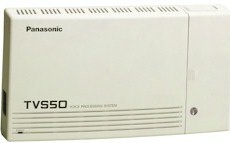
- This
page
will help you get
your voice processor working in a typical business or home environment, providing
both automated attendant and voicemail service, with a Panasonic
KX-TD, KX-TA, or KX-TAW series phone
system.
- The work on this page is
done AFTER you have made programming changes in your phone
system, to prepare it for use with your voice processor. If you have not
yet made the changes in your phone system, click on one of the
"Preparing" links above.
- Some of
your work will be done from a PC, and some will be done from a phone.
- The
voice processor programming instructions on this
page are based on using terminal software, such as HyperTerminal (which
comes with Windows), to access the DOS-like programming imbedded inside
the voice processor.
- Many of our
clients prefer to
use "VoiceMail Master" for Windows.
CLICK
for info, and a link to download a free demo.
- You can
modify the suggested settings to provide the best operation for your
particular needs.
- On this page, "Voice
Processing System," "Voice Processor," and "VPS" mean the same thing.
|
| |
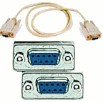 Connect your PC to
the VPS using the AbleComm ProCable,
or a serial cable and null modem adapter from RadioShack. Be sure to
get a cable or adapter that has the right connector for your voice
processor, which may be 9-pin or 25-pin. Connect your PC to
the VPS using the AbleComm ProCable,
or a serial cable and null modem adapter from RadioShack. Be sure to
get a cable or adapter that has the right connector for your voice
processor, which may be 9-pin or 25-pin.
>>You CAN'T
program your voice processor with a USB cable.<< |
 Instead of mounting your voice processor
next to the phone system control unit, you can mount it near one of your
computers, so it's easy to make programming changes. It won't take
up much space, and the wiring is very simple -- much simpler than
extending a serial cable 50 feet. Instead of mounting your voice processor
next to the phone system control unit, you can mount it near one of your
computers, so it's easy to make programming changes. It won't take
up much space, and the wiring is very simple -- much simpler than
extending a serial cable 50 feet.
For "long distance" programming, use the
AbleComm
ProConnector Kit. |
| |
|
- Before starting to
program the VPS, make sure it is connected to
the phone system. (See "Preparing" links above.)
- Open HyperTerminal (from
Start, Programs, Accessories, Communications).
- Click on FILE, then NEW
CONNECTION. Assign a name, such as TVS50, and select an icon that you
like, and click on "OK."
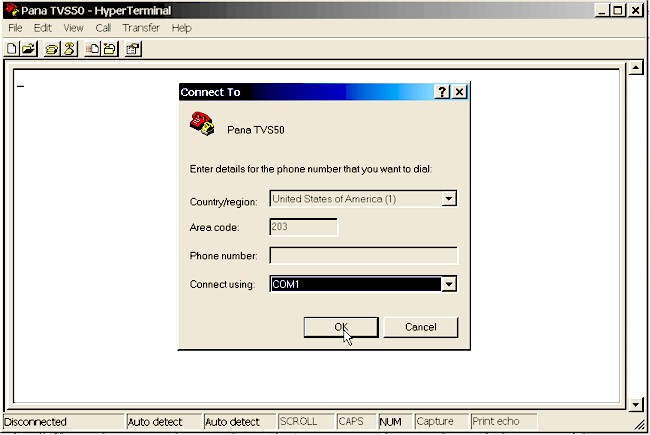
- A "Connect to" window should open now
(shown above). In the
bottom section, select Connect Using COM 1 (or whatever port you are
using) and click on "OK."
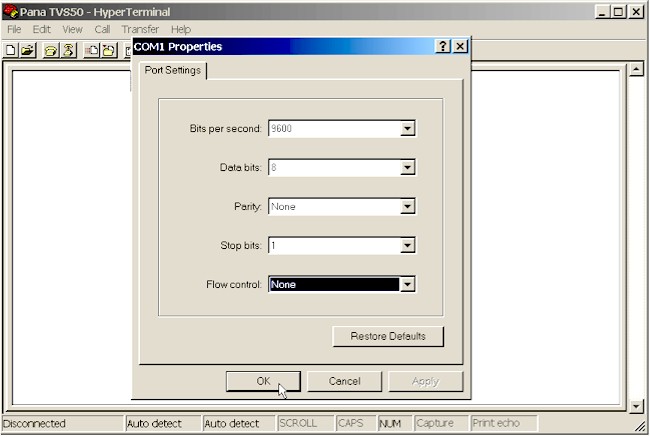
- A "Port Settings" window should open next
(shown below). Select
9600, 8, none, 1, none.
- CLICK on "OK."
 |
NOTE: While
programming the voice processor, the PC screen display will often refer to
your "PBX." In this case, PBX means the control unit ("KSU") of your phone
system. |
| |
|
|
Plug the voice processor into an electric
outlet, and turn it on if
it has a power switch. |
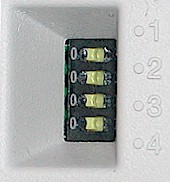 If your voice
processor has four tiny "DIP" switches, start the unit with the
switches in the following positions, to initialize the factory
settings: If your voice
processor has four tiny "DIP" switches, start the unit with the
switches in the following positions, to initialize the factory
settings:
| 1 |
right (1) |
| 2 |
left (0) |
| 3 |
right (1) |
| 4 |
left (0) |
During programming, you will be
instructed to move all the switches to left (0), so your settings can be saved. |
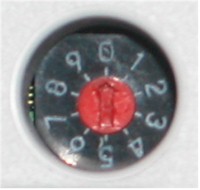 If your voice
processor has a small rotary switch, start the unit with the switch
pointed at 5, to initialize the factory settings. If your voice
processor has a small rotary switch, start the unit with the switch
pointed at 5, to initialize the factory settings.
During programming, you will be
instructed to move the switch to 0, so your settings can be saved. |
.
After turning the power on, the system starts up in the
following sequence:
1. The Power Indicator light goes on.
2. The Power Indicator light begins to flash.
3. “PORT TEST” is displayed on the screen.
4. “SYSTEM SETUP” is displayed.
Screen Output for phone
systems with DPITS: (may not be exactly as shown below)
Checking Flash Memory Cards.
Please wait...
PORT TEST ...
SYSTEM SETUP ...
1.. 2.. 3.. 4.. 5.. 6.. 7..
Active COs : 1 2
DPT Interface Connection is Established
** ON LINE MODE **
SET THE DIP SWITCH
(OR ROTARY SWITCH) OF THE
CABINET TO POSITION <0> OR ELSE ALL INSTALLER PROGRAMMING, USER
MESSAGES AND SETTINGS WILL BE LOST ON NEXT POWER UP!
This is your only warning. |
|
NOTE: The screen shows
"COs," which usually refers to lines from the phone company's Central
Office. This is really STOOPID. It is really testing the ports in the VPS. |
The display will alert you if
System Setup is not completed successfully.
Screen Output:
Active COs: 1 2
APT Interface Connection is not Established
** OFF LINE MODE ** |
| |
|
|
IMPORTANT:
The default
programming for the KX-TVS50 voice processor is for use with the KX-TA624 phone
system. If you are installing a KX-TVS50 and it does not sense that it is connected to a
KX-TA624, you
will get the error message shown above. It is perfectly
OK to see this message if you are using another model phone system; so just
press ENTER. |
|
| |
|
|
IMPORTANT:
If you see a menu
like
the one at the right,
select VT100. |
Please
Select Your Terminal Type.
1. ASCII TERMINAL
2. VT100
Please Enter the Number := |
|
|
|
| |
When start-up is completed:
1. “**ON LINE MODE**” is displayed.
2. System prompt ">" is displayed on the screen.
Press ENTER.
You will then see the
System Administration Top Menu.
System Administration Top Menu
1.Program
2.System Reports
3.Utility Command
4.System Reset/Clear
5.Quick Setup
SELECT ITEM and PRESS Return-Key
PBX Type, VPS Port, Mailbox Extn., Time, Password |
Type [5] or cursor down to 5, and press ENTER
to begin the Quick Setup Sequence.
The screen will show:
Quick Setup Utility for connection to Panasonic
KX-T series telephone systems
This utility provides a quick way of programming the voice processor to operate in a standard automated attendant or
voice mail configuration when connected to a Panasonic KX-T series
telephone system. The system will prompt
you to enter, modify or confirm settings based upon which PBX type
you select.
By entering the appropriate information in the following screens,
the system sets PBX integration parameters, identifies the extension
numbers connected to it, creates default mailboxes, sets its ports
to handle callers with automated attendant or voice mail service,
sets system passwords and sets
the time and date. Finally, it confirms that you want to activate
the system based on the information you entered, modified or
confirmed.
To proceed, press Enter. To exit and cancel Quick Setup now, press
\. |
Press ENTER.
Screen Output:
Please select your PBX type.
1. KX-T308/KX-T616
2. KX-T1232
3. KX-T96
4. KX-T336
5. KX-TD816/KX-TD1232
6. KX-TD308
7. KX-TA series
0. OTHERS |
|
IMPORTANT:
The KX-TVS95, 125, 225, and 325 voice processors let you select
"KX-TDA/TAW
series.”
If the voice
processor Quick Setup screen displayed on your PC does not
include the KX-TAW848, select "KX-TD816/KX-TD1232." |
Select your PBX type (control unit model #) by typing in
the digit preceding the model number on the PC screen, and press ENTER.
|
IMPORTANT:
While programming in HyperTerminal, you can
save a setting and move back to the previous menu by pressing the
backslash
"\" key. |
|
You'll next see a mailbox editing screen. It may
automatically show some names if they had previously been programmed into
your phone system.
To add names, just type them in the "OWNER" column.
You can do lots of mailboxes now, or just enter one and come back later. To
move from one column or row to the next, press "enter." To
leave this screen, press "S" while your cursor is in the "MAKE" column.
|
Quick Setup - MailBox
Editing
Extension
and mailbox list Assigned 15 Vacant 15 Page 1/1
EXTN.
MBX OWNER MAKE (Make/Delete)
101 :
101 BUSH....... Make
102 :
102 GORE...... Make
103 :
103 ................ Make
104 :
104 ................ Make
105 :
105 ................ Make
106 :
106 ................ Make
108 :
108 ................ Make
109 :
109 ................ Make
110 :
110 ................ Make
111 :
111 ................ Make
112 :
112 ................ Make
113 :
113 ................ Make
114 :
114 ................ Make
115 :
115 ................ Make
116 :
116 ................ Make
P:
Previous menu, N: Next menu, S: Next Screen
|
You will next see the Port Service Setting screen. We
recommend that you leave it alone for now. You can change it later if you
want; but the default settings are fine for most situations.
|
Quick Setup - Port
Service Setting
All ports are currently
set up to handle callers with standard automated attendant
operation, day and night mode, using the Custom Service feature
(Custom 1). You can change the operation to standard voice mail
(Custom 2) or leave it as automated attendant. If necessary, Custom
1 and Custom 2 can be modified under the menu 'Program -> Service
Setting -> Custom Service'.
Day Mode Night Mode
PORT 1 Auto. Attend. Auto. Attend.
PORT 2 Auto. Attend. Auto. Attend.
A:Auto.
Attend., V:Voice Mail, S:Next Screen
Auto.
Attend.(using Custom 1),Voice Mail(using Custom 2) |
.
NOTE: The newest versions
of the voice processors have a "trunk service" feature that
allows you to direct incoming lines to specific custom service menus. If you don't want different
menus for different lines, use "port service."
Program Menu
1.Mailbox Setting
2.Class of Service
3.Port/Trunk Service
4.Service Setting
5.System Parameter Setting
6.Hardware Settings
SELECT ITEM and PRESS Return-Key
Port Service, Trunk Service |
Program - Port/Trunk Service - Trunk Service Menu
1.Port Service
2.Trunk Service
Enter the Trunk Group Number( 1-48 ) = |
| |
| >>BE
CAREFUL<<
|
-
Where it says to enter a "Trunk Group Number," you enter a line
number (the first line in your system is line one, or "trunk one"), then
Day Mode.
-
This is really STOOOPID. A trunk group in
the voice processor is a group of one line; it's not really a
trunk or a group!
HOWEVER, if
you have a KX-TAW848 phone system, it's not STOOOPID: you use
the trunk group numbering you set up in the 848 programming.
-
Also, except for the KX-TAW and KX-TDA
systems, a trunk group in the voice processor
has nothing to do with a trunk group in the phone system, (also known as "CO
Line Group," "Outside Line Group," "TRG," "TRK GRP," "lasagna" and
"Harvey.")
|
Program - Port/Trunk Service - Trunk Service - Day Mode Menu
Trunk Group Number [ 1 ]
Company Greeting No. (1-32,S:System,N:None) ------------ | None
Incoming Call Service ---------------------------------- | Custom
1
Incoming Call Service Prompt --------------------------- | User 1
Delayed Answer Time (0-60 s) --------------------------- | 0
Time Group No. (1-8) ----------------------------------- | 1 |
Then specify a company greeting if you want to use one (not
available on all systems), then assign a Custom Service number (keep
records on paper) then User 1 for Incoming Call Service Prompt, leave
Delayed Answer Time at zero, leave Time Group at 1.
Then repeat for night, lunch and break modes if you are going to
use them, and then do the other trunk groups, or ports.
|
The next screen is where you set an administrator's
password, to keep other people from messing up the system.
You'll have to
enter it several times.
|
IMPORTANT:
WRITE DOWN THE PASSWORD IN AT LEAST TWO PLACES! |
| |
|
|
Quick Setup - Password
Setting
System
Administrator Password
( Maximum 8 characters )
NEW PASSWORD :=
|
The next screen is the last part of Quick Setup. It
saves your mailbox settings, and restarts the voice processor.
Type "1" and
press ENTER.
|
Quick Setup - Setup
To set up
the mailbox and restart, select 'Yes'.
To cancel
and exit, select 'No'.
1.
Yes 2. No
|
The system will then restart and you will see:
PORT TEST ...
SYSTEM SETUP ...
1.. 2.. 3.. 4.. 5.. 6.. 7..
Active COs : 1 2
DPT (or APT) Interface Connection
is Established
** ON LINE MODE **
|
You will then reach the Top Menu.
Enter your password.
Type 1 and press ENTER to program.
Enter the Administrator Password :=
System Administration Top Menu
1. Program
2. System Reports
3. Utility Command
4. System Reset/Clear
5. Quick Setup (VT100 Mode Only)
Enter the Number := |
You will then see the Program Menu.
Type 4 and press ENTER to program your service settings.
Program Menu
1. Mailbox Setting
2. Class of Service
3. Port Service
4. Service Setting
5. System Parameter Setting
6. Hardware Settings
Enter the Number := |
Next comes the Service Setting Menu.
Type 2 and press ENTER.
Program - Service Setting Menu
1. Auto. Attn. Setting
2. Custom Service Settings
3. Caller ID Call Routing
Enter the Number := |
The next screen is where you start to program the
menus that callers will hear.
Type 1 and press ENTER.
|
Program - Service Setting
- Custom Service Settings
1. No
Description 6. No Description
2. No
Description 7. No Description
3. No
Description 8. No Description
4. No
Description 9. No Description
5. No
Description 10. No Description
Return : Check Next
Custom Service Menus
Enter the custom service
number :=
|
In the next screen, you will start working on the
first menu, called "Custom 1."
We recommend that you make the entries shown in blue in the screen shot
below, and keep the other settings for now.
In some cases, simply typing in an entry will move you along to the next
step.
In some cases, you will have the press ENTER after typing.
|
IMPORTANT:
While programming in HyperTerminal, you can
save a setting and move back to the previous menu by pressing the
backslash
"\" key. |
|
| |
|
Program - Service
Setting - Custom Service Setting - Custom 1 ( Not recorded )
1. Description [
]
:=
Main Menu
(or some other suitable
description)
2. Prompt Mode [
System ]
1:System
2:User1 3:User2 := 2
3. Menu Repeat
Cycle [ 3 ] ( 1 - 3 times ) :=
4. Call Transfer
Anytime [ Extn. ] ( Extn./Mbx/No ) :=
5. Wait for
Second Digit [ 1 ] ( 1 - 5 s ) :=
6. No DTMF Input
Operation [ c ] ( a - f )
a.Transfer to
Mailbox
b.Transfer to
Extension
c.Operator
d.Exit
e.Previous
Menu
f.Custom
Service
Select Operation
:= 1
-
This setting determines what
happens to callers who don't press any touch-tone buttons.
-
The default "c" will send the
caller to the lowest numbered phone.
-
You can change the setting if
you prefer another option.
|
| |
|
|
IMPORTANT:
Some Panasonic voice processors have one screen for entering
custom service parameters, plus separate screens for assigning
the touchtone digit functions ("keypad assignment"). Some models
combine the parameter settings and digit settings in one screen.
CLICK to see a combined function
screen shot. |

You will now be able to start forming the actual menu,
by associating an action with a caller's key stroke on a touchtone phone.
It's a good idea to write out a script before you start programming the
buttons.
Any key stroke can send the caller to a person, or to
a group of people in a department, or to a mailbox, or to another menu, or
to the main menu, or can repeat the current menu, or allow the caller to
type in a few letters of a last name to reach someone, or do other things.
Create a “tree” diagram to design a route
leading callers to the desired person, department, mailbox, or next menu. This tree should include
all available caller options and cannot be deeper than eight layers. You
might want to discuss available
options with users before programming the system.
The top of the tree (at left below -- our tree fell down) should include what callers will hear
after a brief company greeting (in the TVS50, it may be a replacement for
the pre-recorded prompt # 819 -- more about it in the big yellow box below). Then create a branch for each option.
Fill in each box so
you can easily see what action corresponds to each keystroke, and make sure
that your spoken message corresponds to the programming.
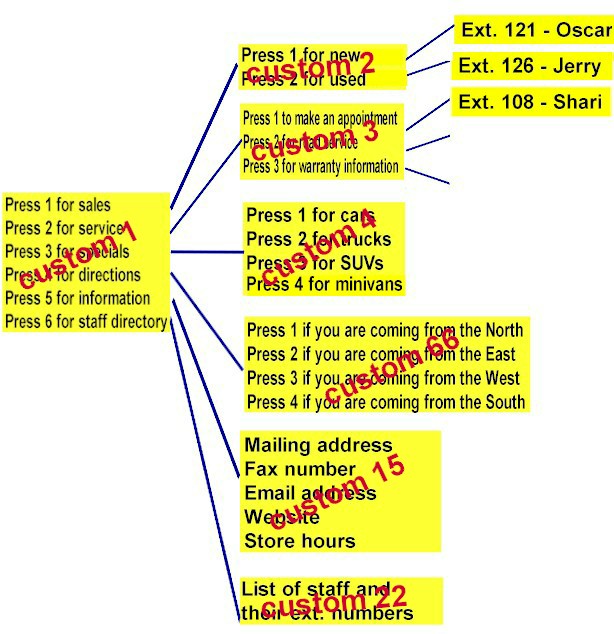
Remember that it is possible and often necessary to have
one custom service lead to another custom service. For example, if someone presses [1] for
sales, you might want another menu to say “for cars, press [1]; for
trucks, press [2].” This way callers are routed directly to the person best suited to
handle them.
The first menu (Custom 1) could be something like:
"If
you know the extension number of the person you are calling, you can dial it at any time.
For a staff directory, press one. To dial by name, press two. For sales,
press three. For customer service, press four. For travel directions, press
five. For our fax number, email address and website, press five. To repeat
this menu, press six. Thank you."
You will work your way through all the buttons on a
touchtone pad, starting with zero. We're showing just one here, but they all
look the same.
7. Keypad Assignment
Keypad 0 [ c ]
| |
|
| a.Transfer to Mailbox |
h.Call Transfer Service |
| b.Transfer to Extension |
i.Subscriber Service |
| c.Operator |
j.Department Dialing |
| d.Exit |
k.Dial by Name |
| e.Previous Menu |
l.Repeat Menu |
| f.Custom Service |
m.Main Menu |
| g.Voice Mail Service |
n.FAX Transfer |
Select Assignment := |
The KX-TVS50 uses separate screens (above) for setting
each keypad assignment.
Other models let you program all keys on one
screen (below).

Once you have finished entering the settings for each digit in each menu, the menu
"messages" or "prompts"
should be recorded.
Menu messages tell the caller what options are available and
what keys correspond to those options, so the messages must match the
programming.
|
IMPORTANT:
Unless you make changes, the first thing that callers
will hear will be "good morning" or "good afternoon" or "good evening" and
"welcome to the voice processing system." These prerecorded phrases are
called System Prompts. |
|
You can eliminate or modify these prompts if you want to, so callers
will hear your own message as soon as the system answers. (For the
KX-TVS50, see section
D6 in the appendix of the PDF manual, or section 6.1.4 in the HTML
manual.)
>>:
Make sure you have selected "User 1" not
"system" prompt in the custom service setting menus, and the
port service or trunk service menus, or your changes
will not take effect. <<
- Access the "Message
Manager's Main Command Menu": dial the intercom number for
the voice processor (usually 165, unless you used a different
number), then press #, 6, *, 998 (or 98 for the KX-TD308).
>>: This will not work if a PC is
still connected and in the programming mode.<< -
Press [5] to
modify messages.
-
Press [6] to modify the user prompts,
- Press [1] to change
user prompt 1.
-
Press [1] to change a specific prompt.
>>OR ON NEWER SYSTEMS<<,
press [1] if you want to re-record a prompt with your own voice,
or press [2] if you want to turn off a prompt. -
Enter the prompt
number you want to change.
- Prompt 819 is "welcome
to the voice processing system."
- Prompt 248 is "good
afternoon."
- Prompt 249 is "good
evening."
- Prompt 250 is "good morning."
|
- In some older systems (KX-TVS75, 100, 200), the
prompts are numbered 315 for morning,
317 for afternoon, 318 for
evening, and 316 for welcome...
|
- Continue following
instructions. You can press 3 to turn off a prompt.
-
NOTE:
by eliminating the pre-recorded prompts, you will
cause a delay between the end of ringing and the first sound
that callers will hear. To minimize the delay, we recommend that
you replace prompt 819 with your own brief message ("Thank
you for calling Acme International") which will be be
played immediately before your main menu (usually "custom
1").
|
The next sequence shows you how to record the custom
service menus.
- Access the "Message
Manager's Main Command Menu": dial the intercom number for
the voice processor (usually 165), then
press #, 6, *, 998 (or 98 for the KX-TD308).
>>: This will not work if a PC is
still connected and in the programming mode.<<
- Press [5] to modify messages.
- Press [4] to change the custom service menu.
- You will hear: "Enter the Custom Service number [1] through [100]. To record the
Custom Service Exit prompt, press [0]."
- Press the button on your touchtone pad
corresponding to the custom service menu you want to record or change.
- Follow the instructions until all Custom Service prompts have been recorded, using the
tree that you created as a guide.
- After you have entered and recorded all menus, it is important to try the program yourself
to see that all functions perform properly. Dial into the system and try all the choices
to see if you are routed correctly. Verify that each menu choice works as it should.
|