- This
page is for use only with a Panasonic KX-TA624 phone system.
- This page does
not apply to older analog systems (KX-T30810, KX-T61610, KX-T123211D), or to KX-TD,
KX-TAW or KX-TDA systems.
- On this page,
"Voice Processing System," "Voice Processor," and "VPS" mean the same
thing.
- If you want your
high-tech voice processor to work like a fancy answering machine,
CLICK.
|
PROGRAM YOUR PHONE
SYSTEM |
-
If you have the
ORIGINAL VERSION of the 624,
use program 102 to
specify the jacks used for the voice processor. We recommend jacks 7 and
8.
You will also have to use program 103 to establish DTMF
integration, or
upgrade
your 624 to a
later version.
-
If you have a
"DASH ONE" OR LATER
VERSION
of the 624,
use program 130 to
specify jacks 7 and
8, or program 131 for jacks 15 and 16. You must disable programs
100, 101, 102 and 103 if they were enabled.
-
If you want phones to
ring before the voice processor answers,
use programs 411, 412 and 413 to delay its
answering. You can select delays of 5, 10 or 15 seconds, an
inaccurate timing reference that represents one, two or three
rings. Make your changes for the jacks where the voice
processor is plugged in.
-
If you want calls to be answered
immediately by the voice processor,
use programs 408, 409, 410 to disable ringing for all phone jacks,
except the jacks where the voice processor is plugged in.
|
|
|
CONNECT YOUR PHONE
SYSTEM TO YOUR VOICE PROCESSOR |
|
|
-
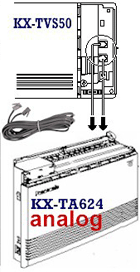
We recommend using Jacks 7 AND 8.
-
Connect Jack 7 to Port 1 in the VPS and Jack 8 to Port
2.
|
|
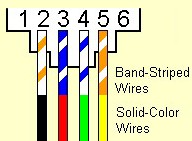
You need to use four-wire (two-pair) cords, because the outer
pair of wires carries the vital data. |
 |
|
◄With the KX-TA624, you will need one cord
for each port for each port in the voice processor. |
|
|
| CONNECT YOUR
COMPUTER TO YOUR VOICE PROCESSOR |
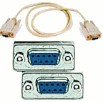 Connect your PC to
the VPS using the AbleComm ProCable,
or a serial cable and null modem adapter from RadioShack. Be sure to
get a cable or adapter that has the right connector for your voice
processor, which may be 9-pin or 25-pin. Connect your PC to
the VPS using the AbleComm ProCable,
or a serial cable and null modem adapter from RadioShack. Be sure to
get a cable or adapter that has the right connector for your voice
processor, which may be 9-pin or 25-pin.
>>You CAN'T
program your voice processor with a USB cable.<< |
 TIP: Instead of mounting your voice processor
next to the phone system control unit, you can mount it near one of your
computers, so it's easy to make programming changes. It won't take
up much space, and the wiring is very simple -- much simpler than
extending a serial cable 50 feet. TIP: Instead of mounting your voice processor
next to the phone system control unit, you can mount it near one of your
computers, so it's easy to make programming changes. It won't take
up much space, and the wiring is very simple -- much simpler than
extending a serial cable 50 feet.
For "long distance" programming, use the
AbleComm
ProConnector Kit. |
|
.You're
now ready to program your voice processor.
CLICK
|